![TTP Logo.png]](https://offshoretalent.com/hs-fs/hubfs/TTP%20Logo.png?height=40&name=TTP%20Logo.png)
Call from a contact record
To start a call from a contact record:
- In your HubSpot account, navigate to Contacts > Contacts.
- Click the name of a record.
- In the left sidebar, click the call icon calling.
- If you don't need to update any calling settings before placing a call, select a phone number from the dropdown menu. The call will immediately begin. Learn how to enter an extension, record, or mute yourself once the call is connected.

- To update your settings before making a call, click Open call options. By default, HubSpot saves your most recent calling settings.
- If a contact that you're calling has opted out of all communication, you will need to give the contact a one-time legal basis to communicate with them before making a call. In the dialog box, click Give one time legal basis to assign a lawful basis and explain why you're allowed to communicate with the contact. You will need to assign lawful basis to contacts who have opted out of all communication even if the GDPR setting is turned off in your account.
Please note: while these features live in HubSpot, your legal team is the best resource to give you compliance advice for your specific situation.
-
- Click the dropdown menu and select a phone number.
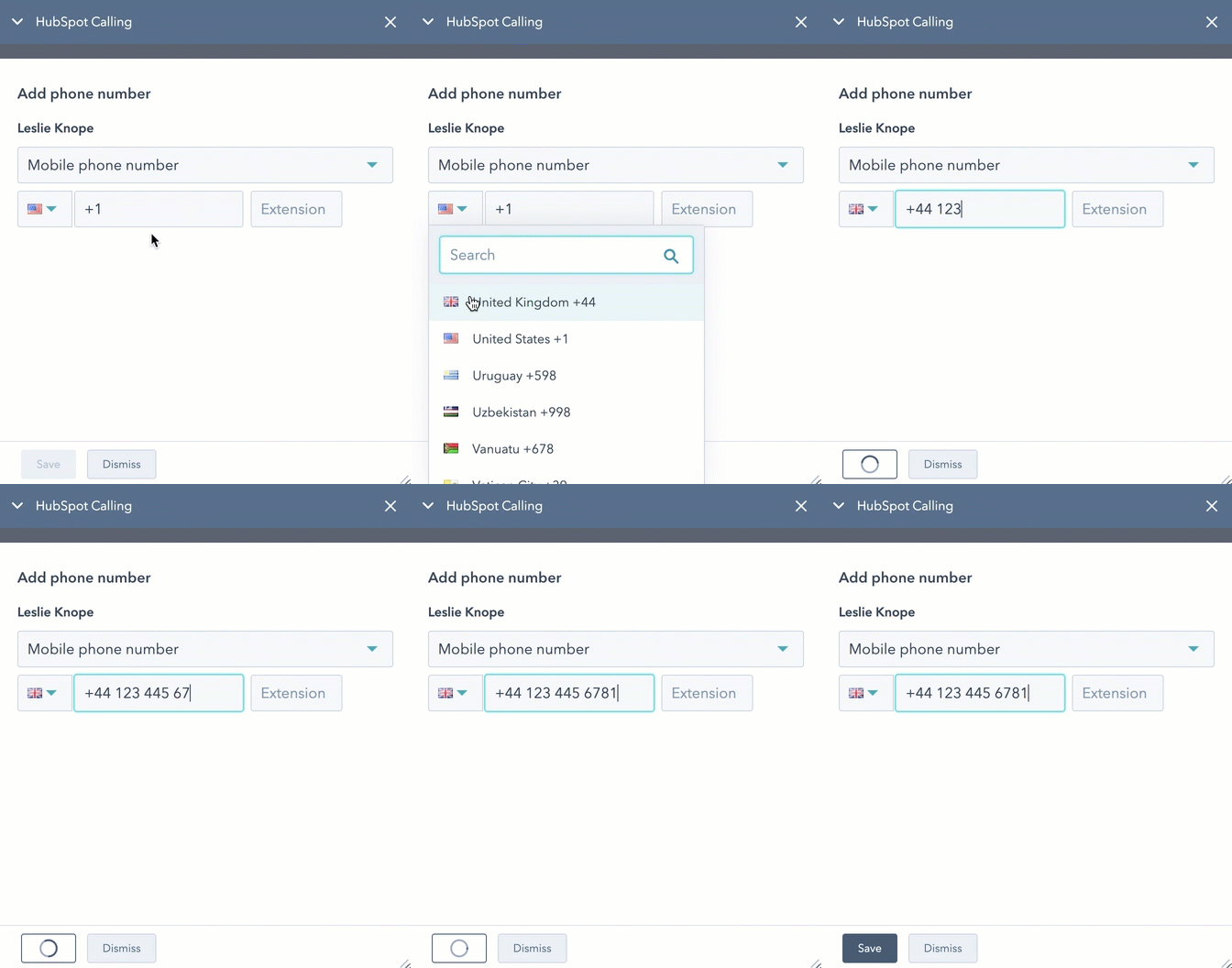
- If you're calling from a contact record, by default, the calling tool will use the phone number stored in the contact's Phone number property. You can add another phone number by clicking + Add phone number.
- Click the dropdown menu and select an existing phone number property, then enter the phone number in the text field. Use the Country dropdown menu to automatically set the country code and apply the proper phone number format. Or, select Add a custom phone property to create a single-line text field property to store another phone number to make calls to.
- If you're calling from a contact record, by default, the calling tool will use the phone number stored in the contact's Phone number property. You can add another phone number by clicking + Add phone number.
- Click the dropdown menu and select a phone number.
* If you want to remove a custom phone number property, click the edit pencil icon next to the number to delete, then click the delete delete icon.
*If you're calling from another object record, select the contact or company to call. If you're calling from a custom object record, you can only choose from the associated records that are listed in the Call dropdown menu.